Showing posts with label Computer services. Show all posts

Monday, August 30, 2010

How to Remove Spyware?

Many people try to experiment with different software on their computer, which not only hampers the computer but also risks the loss of personal data of the user. From early days, hackers and crackers tried to access, tamper and steal other people’s data for their own uses. In order to do the same, they also created computer viruses, spywares, and malwares etc.


As technology advances, hackers have also evolved their viruses and spywares to give computer users tougher and harder times. Spyware comes through the internet and have many forms like as an antivirus security suite, a toolbar, etc... While the user browses a webpage, spyware pops up and shows a face report regarding the user’s computer. People fall for this fake report and install the spyware on their computer. And they get infected unknowingly. However, like every problem has its solutions, you can also fix it quite easily. Like several other viruses, these types of viruses are removable too. But it needs some time and a lot of patience to perform this.

For spyware removal, you can consult a computer repair service provider. There are many such computer services companies that provide excellent tech support so that your computer can remain free from viruses and spyware and other malicious objects. You can also try some anti-spyware suites for removing and protecting your computer from spyware’s. Some of these are Ad-Aware Free, HijackThis, SmitFraudFix, Malwarebytes, and SuperAntiSpyware.

Wednesday, August 18, 2010

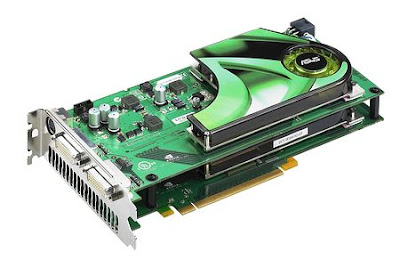
Which is the Best Graphics Card?

There is a gamer inside all of us. So to enjoy gaming or for the sake of the picture quality you have got a grand of a computer or have assembled one. You have purchased the best of what you can afford but still you are unsatisfied. You thrust for more, you dream of getting the best possible graphics card that money can buy; but you are on a tight budget. Which is the best graphics card? Well, there are so many options in the market. If you find it difficult to install graphics card, you can talk to a computer services company for tech support.


Let’s see which one gives the best bang for the buck under different price tags.

1. If you have a budget of approx. $55, then you can opt for ATI Radeon HD4650. Why? It’s the best solution for budget constraint gamers. With this card, you can play games at 1280x1024performances in most games, 1680x1050 with lowered detail.

2. If you have a slightly bigger budget of approx. $75, you can check out NVIDIA GeForce Gt240. With this card, you can play at 1680x1050 performances in most games, 1920x1200 in most games with lowered detail.

3. With a budget of approx. $105, you can opt for either ATI Radeon HD4850 or NVIDIA GeForce GT250. With any of these two cards, you can play at Exceptional 1680x1050 performance in most games, 1920x1200 in most games with lowered detail.

4. With an extended budget, you can look for ATI Radeon HD5770. This card will play at Great 1920x1200 performances in most games.

5. If you happen to have a bigger budget, you can opt for NVIDIA GeForce GTX470, with which you can play at Exceptional 1920x1200 performance, Good 2560x1600 performance in most games.

6. For those with a grand budget, you can choose between ATI Radeon HD5870 or NVIDIA GeForce GTX480 which plays at a Good 2560x1600 performance in most games, or ATI Radeon HD5970 for a Great 2560x1600 performance.

Which is the best graphics card – is certainly a very tricky question. One thing is for sure; whichever card you choose, it’s going to be worthy upgrades form the existing graphics card you have. But the more you spend, the more you will thrust. Happy gaming!

Tuesday, August 10, 2010

Display Problem in Monitor, How to Fix?

A monitor is an output display unit for computers. This is an integral part of a computer system. Monitors are basically of three types. These are CRT, TFT-LCD and the new LED type. A monitor usually has two things – power socket and display port (usually VGA). But in some of the new monitors you can also find additional things like HDMI port, Audio port, DVI port and also USB ports as well. Display problem in monitor is a very common problem. To fix the problem you can talk to a computer services company that is renowned for offering remote tech support.

In laptop computers, the monitor size ranges from as low as 8 inch to a mighty 17 inch; while in desktop computers, the monitor size ranges from 14 inch to a whooping 32 inch or more.

Display Problem in Monitor, How to Fix?

But like all other electronic devices, monitors too can get bad due to course of time or due to user ignorance. One of the most common problems that you might face with the monitor is related to bizarre patterns or lines in them. This problem usually crops up if the display cable that connects the monitor to the computer goes bad of if there is some wrong setting in the monitor display menu or the desktop settings menu in the control panel.

Try to fix the problem by searching and rectifying the causes. If everything fails or the monitor is broken or is found out to be a manufacturing problem, it is better to consult the manufacturer of the monitor for further support.

Friday, August 6, 2010

Outlook doesn't display zip files, How to Fix?

Outlook problems could be of various types. Sometimes outlook does not display the Zip file. It causes a big problem as we send important documents as attachments. You have got an important mail but not able to open that. Certainly, it’s very annoying. But it’s very easy to resolve the problem. You can also talk to a computer help provider to resolute this outlook problem.

In this article we have discussed about the steps which will help you to resolve ‘outlook doesn’t display zip files’ issue and before we do so we need to know why it happens. When we send an attachment, outlook sees this folder as a folder while windows operating system sees these folder as an ordinary file and folder. And the problem occurs.

To resolve this problem, you need to restart outlook and compressed folders also need to be disabled. You can do that from the start option type the command:

a) regsvr32 /u zipfldr.dll
regsvr32 /u cabview.dll

To restore the feature again follow the command

b) regsvr32 zipfldr.dll
regsvr32 cabview.dll

This will help you to resolve the issue. The process certainly is very simple and easy to follow.

Wednesday, August 4, 2010

Hard Drive Noise, What to Do?

In a computer a drive is related to either the hard disc drive (HDD) or the CD/DVD drive. These internal drives of the computer are soundless when they run but you can hear a humming sound if you listen carefully.

Hard Drive NoiseThis silence or humming sound denotes that the drive is working properly and efficiently. But if you hear some weird noise while the drives are working, then you need to be concerned, as these weird noise denote that there is some problem while the drive is running and is not working properly.
If you hear any weird noise while the drives are working, you should not overlook it as this may lead to a hardware problem resulting in the malfunction of the drive. Some examples of weird noise from the hard disc drive and cd/dvd drive are:

• Sounds like claking/metal tapping
• Sounds like studding access data
• Sounds like metal moving around
• Buzzing Sound
• Clicking Sound
• Whizzing Sound
• Screeching Sound
• Grinding Sound
• Tickling Sound

If you come across any such problem, it is strongly recommended to get in touch with a computer repair company for tech support.

Tuesday, August 3, 2010

Mouse Pointer Moves Too Slow or Too Fast?

We all computer users know what a mouse is in the computer terminology. But do you know how is the mouse speed controlled? In many cases, it is seen that the mouse pointer moves too slow or too fast. Do you know how to resolve this issue? Yes, you can talk to a computer services company and get it resolved very easily but what about trying to solve the problem on your own?

Mouse Pointer
Usually we use 2 – click button mouse. There is a certain mouse which has 3 click buttons too. But the 2 click ones are the most popular. One is the left click and the other is the right click. The left click is used mostly while the right click is used for special functions. The left click is used mainly for pointing and selecting purpose while the right click is used for getting an alternate menu related to that content.

But what is a mouse pointer then? When we move a mouse we see an arrow which helps in pointing…that is the mouse pointer.

Its movement can be controlled from the control pane. In the control panel page choose mouse and open it to get a properties page. In it under pointer options one can reduce or increase the speed of the pointer.

In case, the pointer is very slow or very fast it can be controlled from the mouse pointer properties page.

If changes in the mouse properties page don’t resolve the issue then one might need to look into the mouse drivers (if there is any driver then). One can go ahead and uninstall the mouse drivers from the add/remove programs page. Once done, restart the pc and then try to look for an updated driver from the manufactures website.

One last step which can be done is unchecking the “enhance mouse precision” option under the pointer options in mouse properties page. For further tech support, one can talk to an expert.

Friday, July 30, 2010

How to Install RAM in Computer?

RAM is a very important component of a computer. And sometimes we install RAM to upgrade the computer for better performance. Now the question is how to install RAM in computer? Have you purchased the RAM? Before buying determine what kind of RAM does your system require and buy accordingly.

Install RAM
To install RAM do the following:

* Unplug the computer and open the computer case to get access to the motherboard.

* Locate where the current RAM is on your motherboard. Is there any extra slot next to your current RAM? If yes, leave the current memory in your computer and insert the new RAM in the available slot.

* It is suggested to take away any cards or internal components so that you can get clear access to RAM sockets.

* Pick up the RAM by the ends without touching pins or chips.

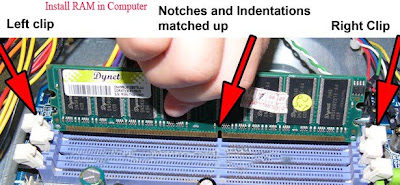
* RAM could only be installed in one direction only. Have a look at the bottom of the RAM stick. It is required to adjust the notches in the RAM with the keys in the slot on the motherboard.

* The retainer clips for the RAM should be all the way open.

* You also need to place the RAM in the slot properly.

* If the RAM is properly set in the slot, the retaining clips on either side of the RAM will snap into place, with a "clicking" sound.

* Connect all the peripherals and switch on the computer. To check whether the RAM is working or not, you need to right click on the My Computer and choose properties option. The amount of RAM will be shown here.

* Shut down the computer and disconnect the computer peripherals and close the computer case up.

For further assistance on RAM installation, you can talk to a technical support expert.

Thursday, July 29, 2010

Tips to Configure Error Reporting in Windows XP

Windows XP operating system comes with an error reporting feature which could be used to report computer and program errors to Microsoft. The company utilizes these reports to track and fix problems with the operating system. Do you know, you can enable, disable, and even modify the way that error reporting works on Windows XP operating system? How? The process is described in this article. If you need more Windows XP support, you can talk to a PC expert.

Typically, in case of an error, a dialog box is displayed prompting to report the problem to Microsoft. If you click on the send report option, technical details about the problem are sent to Microsoft over the Internet. An Internet connection is required to use the feature. You can also cancel this clicking on don’t send option.

How to access the settings for the reporting feature? The process is stated below:

* Click Start.
* Right-click My Computer, then click Properties.
* Click the Advanced tab.
* Click Error Reporting.

How to configure the error reporting? In Windows XP operating system, error reporting option is enabled by default. You can disable it clicking “Disable error reporting.” If you want to report only the critical errors, select the “But notify me when critical errors occur” check box. Option is also there to report errors only for chosen programs. To avail this, click “Choose Programs” option and click “All programs in this list”. To select error reporting for specific program, click “Add” and select the program with browse option.

Tuesday, July 27, 2010

Increase Virtual Memory in Windows XP for Better Performance

Do you know, you can increase performance of your Windows XP operating system by increasing its virtual memory? Virtual memory is a temporary space on the hard drive that the operating system uses in case of shortage of RAM.

Windows XP
Windows XP is a multi tasking operating system and to run multi tasks, a virtual memory is created when there is a shortage of RAM. To create this virtual memory, a part of hard drive is used. Now the question is how to increase the virtual memory. You can ask for remote tech support to sort this problem.

Following are the steps to increase virtual memory:

1. Click Start, and then click Control Panel.
2. Click Performance and Maintenance, and then click System.
3. On the Advanced tab, under Performance, click Settings.
4. On the Advanced tab, under Virtual memory, click Change.
5. Under Drive [Volume Label], click the drive that contains the paging file that you want to change.
6. Under Paging file size for selected drive, click to Custom size check box. You can enter the amount of memory you would like to reserve for Virtual memory by entering the initial and maximum size.
7. Click Set
8. When you are prompted to restart the computer, click yes.

You must remember one thing. There is always a minimum and maximum limit of the virtual memory. It is very important to choose a correct virtual memory. The minimum limit of virtual memory is 1.5 times of the Ram size and the maximum limit of virtual memory is 2 times of the actual RAM size.

Monday, July 26, 2010

How to Turn Off Autorun in Windows XP

Whenever we insert a media into the drive, Windows automatically starts reading it. This is because of the AutoPlay function. AutoPlay is enabled for removable drives with Windows XP SP2 and later editions of Windows. Even the ZIP drives and some USB mass storage devices also automatically run when connected to computer. Do you want to turn off Autorun option in Windows XP?
Do the following:
1. Click on Start button in Windows and open the Run dialogue box.

2. Write gpedit.msc in the search box.

3. You will find Administrative Templates under Computer Configuration.

4. Expand Administrative Templates.

5. Click on System.

6. You will find Turn Off Autoplay on the right hand pane.

7. Double click on Turn Off Autoplay option.

8. Under Turn Off Autoplay properties select the Enabled option and select the drive that you want to Turn off autoplay.

9. Click on Apply and Ok.

If you need technical support in this regard, talk to a PC expert.

Thursday, July 22, 2010

Ultra Low Power Athlon II X2 270u Hits Market In Quarter 3

According to the recent news, AMD is going to release one more ultra low power CPU. This time it is Athlon II X2 270u. The processor is based on C3 revision of the Regor dual-core. Athlon II X2 270u is a 25W dual-core with DDR3 1333 support.

Also it has a 2MB cache and is compatible with AM3 motherboards. It is expected that Athlon II X2 270u will hit the market in quarter 3 of 2010.

Are you thinking, what would be the price of Athlon II X2 270u? The price of this product is in higher side. AndAthlon II X2 270u will be available in the market at $150.

Do you need technical support to resolve any computer related issues? You can talk to a help desk specialist.

Tuesday, July 20, 2010

No Sound in Windows XP, What to do?

Is not there any sound in Windows XP operating system? Or, no sound is coming from the speakers or headphones? There might be several reasons behind this problem. It might be corrupt or incompatible drivers, wrong sound settings, or missing updates. Do the following to make out and fix common sound problems in Windows XP.

First and foremost, check the sound card of the system (if installed). Click on Start and go to Control Panel. Then double-click System, and choose the Hardware tab, and then click on Device Manager. You might be asked for an administrator password or confirmation. Give the password for confirmation.

If there is a sound card installed, go to video and game controllers category, and check whether the card is showing or not. You can run the Diagnose and fix sound playback issues. If you find the hardware devices are not detected or not working, fix it.

If the issue still persists, you need to update drivers. First, update the operating system of the Windows. Then install software from the device manufacturer. For more help regarding sound problem in Windows XP, you can talk to a computer help provider. There are many remote computer repair companies that assist you to resolve these types of issues.

Internet Safety Tips

Are you new to the realm of internet? If yes, you must remember some internet safety tips to make your internet browsing much easier, faster and safe. To save your precious time, you must go for a fast internet connection. You can choose a DSL connection or a Cable connection. These type of connections are very fast and the pages get loaded very quickly.


In many cases, it is seen that the users forget to log out from their account. This could be a dreadful mistake as your personal and confidential information could be revealed to another user. So, whether it is your home computer or public computers, if you login don’t forget to logout of that account when your job is done.

New users use simple passwords like “password” or “123” so that they can remember it. But remember that it increases the risk of your account to be hacked. So, it is strongly recommended to use passwords having alpha numeric and special characters.

Can’t you remember the URLs of the sites? You don’t require remembering them. Bookmark pages and your browser will remember them.

Sometimes you may get emails stating that you have won a prize. Don’t get fooled by these types of mails. Don’t open emails from unreliable source. More importantly, never open the attachments from these types of sources as they may have viruses.

For more assistance on internet safety and computer help, you can talk to an expert.

Monday, July 19, 2010

Antec’s 1200W PSU, a Popular Choice

A PSU or Power Supply Unit is a part which supplies power to the other components in a computer. This power supply unit has been designed to convert general-purpose alternating current (AC) electric power from the mains to usable low-voltage DC power. This is done to run the internal components of the computer. There are some power supplies available which come with a switch to change between 230 V and 115 V. There are also many other models that have automatic sensors and they switch input voltage automatically.

With new gaming titles coming up round the corner, gaming enthusiasts are looking for new high-end graphics card for their gaming purposes. But some of the new graphics card requires additional power to run efficiently. A normal power supply won’t be able to handle the extra power required by the new graphics card. For this reason, it is important to upgrade the existing power supply unit of the computer with a bigger one, which will be able to handle these tasks effortlessly and efficiently.

This is where Antec’s new power supply unit comes into view. This new PSU has a rating of 1200W and has an 80mm fan inside it. This new PSU comes in two forms. One is a normal one, while the other one is an OC version. This is for those who want to do heavy over clocking in their computer. For any assistance on PSU or other computer help, talk to a PC expert.

Following is the specifications and list of connectors for this PSU:

Thursday, July 15, 2010

Wireless Network - the Best Way to Remain Connected

Do you know Wi-Fi network is one of the finest ways to network your home PC's? Through a wireless network you can not only share Internet access but also share files, printers, and more with the computers in the network. A wireless network is also very much convenient to surf the Web sitting on your couch or from any corner of your home. In addition, installing wireless network is very simple and hassle free.

Wireless Network
To enjoy home wireless network, first you need to choose the equipment. There are many internet stores where you can get these equipments. You need to buy a Wireless router as well as a computer with built-in wireless networking support. You can also opt for a wireless network adapter. Remember, a Broadband Internet connection is also a must. The function of a wireless router is to convert the signals that come across your Internet connection into a wireless broadcast.

While setting up wireless router, you will be temporarily disconnected from the internet. To connect the wireless router, you need to set the cable modem. Then you need to attach the wireless router to the modem. During this time, ensure that the modem is connected to the Internet. Once everything is done, the computer will be wirelessly connected to your router.
Setting up wireless network might listen to very complex, but actually the process is very simple. If you find any difficulty during Wi-Fi Set Up, you can talk to computer help providers who offer tech support.

How to Add Borders in Objects and Pictures in a Word Document?

Most of times after adding borders in the text document we want to add borders in the pictures and objects. Typically borders are added to give finishing touch to your written document. Let us learn how to do this with the help of computer repair professional. First select the object and click on format tab. In the object Styles group, click on Shape Outline or Picture Border button.

Now select the color, style and line weight of the border. Now click the object Effects button to further enhance the border. For example you can put a shadow effect or a refection.

Now learn how to add borders to a table.

Open a word document and select the table in which you want to add borders. Now go to Tables Tools Design tab in the Table Styles group and click the arrow next to Borders. Then select the placement of borders. For instance you can add borders around every cell of the table or just outside it. If you want to try out more options then click on Borders button. You will find a dialog box that says Borders and Shading, now select the portion where you want border and choose the other border attributes. Then select “OK”

Wednesday, July 14, 2010

How to Use a Memory Card?

Memory cards are also known as flash cards. In fact it is general term that is used to refer to small, portable and solid state removable storage device. Memory cards are generally used for digital electronic devices and portable media players such as mobile phones and digital cameras. Sometimes they are also used in gaming consoles to store various games. Let us know how to use memory card in PCs with the help of tech support experts.

Memory card are available in various shapes and formats as they are made to suits different capacities. According to computer repair experts you should not end up buying a wrong memory card therefore your primary source of information should be device user’s manual on which the memory card is used. You also need to back this up with some sources from the internet.

While choosing a memory card you need to match the memory card or format the device. Specific portable device requires a particular memory card. You should only use the type of the format mentioned in the user guide of the device. Usually you cannot tell that this is the kind of memory you actually need. For example the formats like Memory Stick Duo, PRO- HG Duo and PRO duo all have the same size and shape. You also need to take a note of storage capacities and speed. Now prepare the memory card that you need use with the device. You need to format the new memory card if using it for the first time. Be careful to insert and remove the card properly so that you do not damage it.

Wednesday, July 7, 2010

How to Change Local Area Connection Settings in Windows?

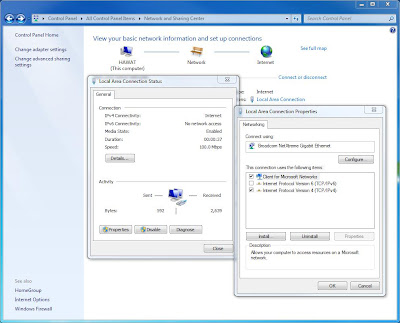
Local Area Connection or Local Area Network is the option which denotes the network adapter or the network card present in the computer. It appears, like all other connection types, in the Network Connections folder. By default, a local area connection is always activated. A local area connection is the only type of connection that is automatically created and activated. If you disconnect your local area connection, the connection is no longer automatically activated. Because your hardware profile remembers this, it accommodates your location-based needs as a mobile user. For example, if you travel to a remote sales office and use a separate hardware profile for that location that does not enable your local area connection, you do not waste time waiting for your network adapter to time out. The adapter does not even try to connect. If your computer has more than one network adapter, a local area connection icon for each adapter is displayed in the Network Connections folder. If changes are made to your network, you can modify the settings of an existing local area connection to reflect those changes. In order to change the settings of local area connection, you need to:

Connection Settings
• Click on “Start”
• Now go to “Control Panel”
• Click on “Network and Internet Connection”
• Click “Network Connection”
• Select the connection whose settings you want to change
• Under “Network Tasks”, click on “Change settings for this connection”
• Local area connection properties dialog box will open up
• From here do the necessary changes by selecting the desired option
• Click “Apply”
• Click on “OK” to save and exit

Tuesday, July 6, 2010

DUAL SCREEN EBOOK LAPTOP – A COMPETITION TO IPADS?

Laptop
Here comes the dual screen ebook laptop – a completely new definition of laptop from Toshiba. A slim and light weight gadget, this can give a stiff competition to iPads. Although it is difficult to predict the magnitude of its success at this point, however it has all the features and characteristics to make it a grand success.

To start with the specifications, this neat piece of slim machine weighs only 819 grams and it is more like an iPad on a Windows platform. It opens vertically like a book and double spread pages on the internet can be read comfortably. It fully capitalizes on the facility of dual monitor, meant for viewing for large and spread out contents. The second screen incorporates the virtual keyboard for the input of data. So a physical keyboard is non-existent. It consists of two 17.8 centimeters dual mutitouch display. The screens have a LED backlight and the processor used is U5400 from Pentium. It has 2 GB of primary memory (RAM) and 62 GB of SSD (solid state drive) as the secondary storage device. It is better than a normal hard-drive because it doesn’t have any moving parts, which are present on the normal hard-drives. It is completely based on semiconductor-based electronics. It is silent and has a lesser access time and latency time. According to Toshiba, a simple sweep of the hand is enough to drag and drop content from one screen to the other. According to Toshiba, you can actually chat face to face with its high speed mobility features.

However, we have to see what sort of configuration is necessary for dual screen monitor viewing on the “display properties” page of the Windows operating system. Is there any display glitch? The time will tell.

Monday, July 5, 2010

Gigabyte GV-N470OC-13I - A review

Joining the family of Nvidia Fermi video cards recently is the GV-N470OC-13L. It started with the GTX480 and then came the 470 series followed by the N470OC-13L.

Following are some of its features:

* It is powered by NVIDIA GeForce GTX 470 GPU 2
* Supports PCI express
* DirectX11
* Open GL 3.2 Support
* 1280MB GDDR5 memory and 32 bit interface
* Supports Nvidia Pure Video Technology
* Dual link DVI support
* 3-way NVIDIA SLI support
* NVIDIA PhysX Technology
* NVIDIA Cuda Technology
* HDMI 1.3a Support
* 7.1 digital surround sound
* RoHS Compliant
* Compatible with Windows 7
* Certified for Windows Vista
* High-Bandwidth Digital Content Protection (HDCP) support
* Shader Model 5.0
* 40nm Technology
* Interactive ray Tracing

This card has some incredible features but it has a lot of close competitors. There are 2 more from the same manufacturer, which fall in the same series too. Besides, AMD has its own line of 5000 series cards.

Well the only fair part with this card is the competitive price. So, it’s just time to tell whether this card will stay or get perished.