Tuesday, June 29, 2010

Wireless and Routers

Late last year, the Institute of Electrical and Electronics Engineers (IEEE) ratified the 802.11n wireless networking standard and this affected the small-office wireless environment.

Now we have workgroup-level 802.11n wireless routers from Buffalo Technology, D-Link Systems, Edgecore Networks and Netgear. These devices were extremely easy to set up, often requiring only the setting of an IP address to get the local computer and wireless client to communicate to each other. They all had basic router functions, such as port forwarding and a firewall. And without exception, each router had all the latest security features, such as Wi-Fi Protected Access, WPA2 and WPA2-PSK certification, in addition to Wired Equivalent Privacy 64-bit and 128-bit encryption.
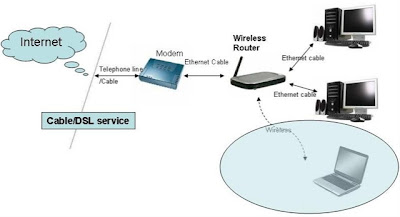
Wireless and Routers
Now a number of tests have been conducted comparing each of these routers.

  • It was found that each of the routers performed best over a particular distance.
  • Each of the routers has different strengths and is best suited for a particular implementation, also depending on the number of users and how far they need to communicate.
  • The routers were also compared according to the ease of setup and making changes to the settings.
  • Lastly these were compared according to their prices.

Let us discuss them one by one.

The Nfiniti Wireless-N Essential High Power Router and Access Point (WHR-HP-G300N):

It is from Buffalo Technologies, it is the smallest and lightest router in this series. At a half a pound and an inch wide, an administrator should be able to easily find a place for the Nfiniti.

It has 10/100 ports for the local-area network and wide-area network connections. The practical limit for the Nfiniti is only 100 megabits/sec. This is because the wireless traffic eventually must go out of one of the wired ports. However, the radio performed well within that constraint. It came within 3 percent of that limit with a single user going from Ethernet to wireless and within 1 percent when sending packets the other way. It did just as well in the 10-user test as in the mixed 802.11g and 802.11n test, and it lost no significant bandwidth. It had a top performance at a distance of 80 feet and an effective throughput of 6.91 megabits/sec.

The Nfiniti’s retail price of $70 is a good one, considering its radio’s power and overall ease of use. It would do well for any workgroup that has AOSS devices to connect or has a mix of 802.11g and 802.11n users.

D-Link’s DIR-825 Xtreme N Dual Band Gigabit Router:

It is from D-Link Systems and comes in a bright white case. One unique feature of D-Link is the SharePort, a USB port in the back that can be connected to a printer or external drive for access without the need of a computer. This feature is pretty useful in a workgroup environment.

D-Link has two independently controlled radios to support the 2.4 GHz and 5 GHz bands. When both are operational, the router can optimize bandwidth use by various kinds of traffic.

It is fastest at 40 feet, churning out an effective transfer rate of 13.96 megabits/sec. D-Link has set the list price for the DIR-825 Xtreme N Dual Band Gigabit Router at $200.

This router would be good for a closely grouped set of users who have a variety of media they access wirelessly.

SMCWBR14S-N3 Barricade N:

It is from Edgecore Networks and can adequately meet a workgroup’s basic wireless needs. The Barricade N has 10/100 ports for its local-area network and wide-area network connections. Its top performance was at a distance of 60 foot, producing an effective throughput of 10.68 megabits/sec.

The Barricade N SMCWBR14S-N3 from EdgeCore Networks has a list price of $60. It would perform decently for a workgroup that has basic routing needs at close distances and doesn't have too much traffic at once.

Netgear ProSafe Wireless-N VPN Firewall (SRXN3205):

It is from Netgear and they are all packed inside a sturdy metal case that you can mount on a wall or rack. The ProSafe’s antenna array has, in addition to the two dipole antennae, a patch antenna in between. That allows the ProSafe to boost the signal in the direction the antenna faces, which can be especially useful if your implementation has long-distance users in roughly the same direction. When combined with the dual radios in the 2.4 GHz and 5 GHz frequencies, you end up with a formidable broadcast device, especially at greater distances.

In addition to router and firewall functions, the ProSafe also have extensive virtual private network capability, both for IP security and Secure Sockets Layer. Its best performance is at 100 feet with an effective throughput of 3.16 megabits/sec.

Netgear is selling SRXN3205 for $259. That is a good price for a router that has all the capabilities and power of the ProSafe. It would do well in an environment with many users who are at moderate to long distances from the router.

Friday, June 25, 2010

What is Storm Worm?

Storm Worm, also known as DoS.Storm.Worm or Win32.Storm.Worm, is a worm type virus that spreads via e-mail, using a variety of subject lines and text messages relating to news events or other current events. This worm virus tries to seek out Microsoft Internet Information Services (IIS) systems that do not have the proper security patches.

DoS.Storm.Worm or Win32.Storm.Worm

The Storm Worm began infecting mostly private computers in Europe and U.S. in 2007. In that year this worm virus accounted for 8% of malware infections globally. The virus spread through e-mails as an attachment. When an attachment is opened, the malware installs the wincom32 service, and injects a payload, passing on e-mail to destinations encoded within the malware itself. According to some antivirus company reports, it may also download and run the Trojan.Abwiz.F trojan, and the W32.Mixor.Q@mm worm. The Trojan disguises on the spam with names such as "postcard.exe" and "Flash Postcard.exe," with more changes from the original attack as it mutates. Some of the known names for the attachments include:

  • Postcard.exe
  • ecard.exe
  • FullVideo.exe
  • Full Story.exe
  • Video.exe
  • Read More.exe
  • FullClip.exe
  • GreetingPostcard.exe
  • MoreHere.exe
  • FlashPostcard.exe
  • GreetingCard.exe
  • ClickHere.exe
  • ReadMore.exe
  • FlashPostcard.exe
  • FullNews.exe
  • NflStatTracker.exe
  • ArcadeWorld.exe
  • ArcadeWorldGame.exe
  • with_love.exe
  • withlove.exe
  • love.exe
  • frommetoyou.exe
  • iheartyou.exe
  • fck2008.exe
  • fck2009.exe

Wednesday, June 23, 2010

Bluetooth Technology: Know How it Works

Bluetooth technology is a popular technology these days and has found its use in different ways like mobile phones, hands free headsets, printers etc. The wireless technology works on different international standards and 802.11 happens to be the most common of the wireless IEEE standards. The Bluetooth is based on the 802.15 IEEE standards and is used for short distance wireless communication based on a Personal Area Network (PAN) which is actually the adhoc mode of connection, in other words it is a wireless connection without the involvement of a router in between devices. We should not confuse it with the normal 802.11 wireless. It supports upto eight devices in the Bluetooth network. It supports a data transfer of 24 Mbit/s for the version 3 type Bluetooth device and the class1 type supports upto 100 meters of distance for transmission. The PAN, SPP, DUN, HID, HCRP are the Bluetooth profiles supported in Windows XP, Vista or 7.


Bluetooth Technology


However we have seen that Bluetooth devices need maintenance as well. A Bluetooth icon should always be there for an active Bluetooth device connected to the computer. If the Bluetooth device does not get detected then make sure that the option “Turn discovery on” check-box is checked in the Options tab when you click the Open Bluetooth Settings tab after right clicking the Bluetooth icon in the system tray. “Allow Bluetooth device to be connected to this computer” and “Alert me when a Bluetooth device wants to connect to this computer” are the options in the same “Options” tab that needs to be checked. Removing the Bluetooth device should remove the entries in the device manager which can be reloaded in a proper way. A Bluetooth device uses 500 milliamps of power when connected to a USB port and that makes it necessary for the proper power distribution at the ports otherwise the device will fail to get detected. Make sure that a cordless phone or a true Wi-Fi set-up or microwave ovens are not emitting radio waves which can hinder the proper functioning of the Bluetooth device. Double click the Bluetooth icon in the control panel and see whether the Bluetooth device is listed under the Device tab or not. From here we can click on the Add button to add a Bluetooth device to the computer. For devices to get detected the two devices should “pair” properly. When two devices pair properly they exchange passwords and device information properly. Troubleshooting can be done at the device manager level or in the registry as well but it is better to contact a technician for that.


One point to note is that even if a PAN is used for connectivity an APIPA (automatic Private IP Addressing) address is taken up by the computer that is an IP starting with 169.x.x.x. It uses TCP /IP for communicating and all this happens without the presence of any router !! The peripheral other than the computer, for example a Bluetooth printer should have a similar IP address. Make sure that the printer is configured first for Bluetooth and then you can run the Bluetooth installation wizard from the control panel of the computer.