Friday, August 13, 2010

Android Phones, Not Immune to Malicious Objects

Android has been playing safe for long. But that safety got raked when a first Trojan hit was reported by Kaspersky laboratories. Identified as Trojan-SMS.AndroidOS.FakePlayer.a, it is a malware which disguises as a harmless media player and prompts users to install a APK file which is a mere 13kb file.

What it does- This Trojan has been identified in sending SMS to premium numbers (numbers which charge) without the user’s knowledge and the money gets charged from the users account which in turn is collected by the criminals.
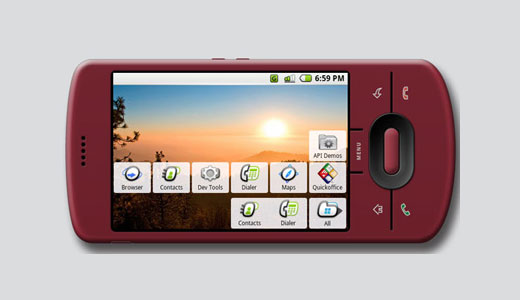
Android Phones, Not Immune to Malicious Objects

Though a few android attacks were heard last year but this one seems to be the best one. This Trojan has already affected many cell phones and related devices according to Kaspersky resources. For virus removal support, you can ask for technical support.

Kaspersky urges that “users pay close attention to the services that an application requests access to when it is being installed. That includes access to premium rate services that charge to send SMSs and make calls.”

Jay Nancarrow, a Google spokesman, said Android applications must get permission from the user before doing things like sending text messages or making phone calls. “We consistently advise users to only install apps they trust,” Mr. Nancarrow said in a statement. “In particular, users should exercise caution when installing applications outside of Android Market.”

Thursday, August 12, 2010

How to Run Android Apps on Your Windows PC?

Android is an Operating System invented by Android Inc and then was modified by Google after taking over the company. We know that Android is for mobiles, smart phones etc. It is also used in netbooks and tablet computers.

Now, one can experience the Android edge on home or office computers too. How? To do this , one needs to download and install the Android Software Development Kit. This Kit is even used by developers to create more Apps and utilities for the Android OS.

Android Apps on Your Windows PC

Once the kit is downloaded and installed a few settings needs to be configured and a virtual Android Phone will be ready on the computer. But there is a limitation- This virtual android phone can’t be used as a normal phone to make/receive calls. Moreover this virtual android is much slower than the actual one.

How do you install Android Apps on Your Windows PC? Before installing the kit, one needs to make sure that Java is installed on one’s pc. It also needs to be checked, that the installed Java is the latest version. If not then the latest java updates needs to be installed. Once the Java update is complete the Android SDK starter package needs to be installed.

The installer comes in a zip file, unzip it and install it. Once the installation is complete you are now ready to create a virtual android device. Once you are done configuring the Android , its time to access the Android Market. For further tech support, talk to a computer services company.

Wednesday, August 11, 2010

LCD Monitor Problem – Some Useful Tips

This article will help the users to resolve the basic issue of a LCD monitor. The monitor of the computer can have various problems. The power light is on but the screen is black. Thinking what will you do? You have checked the contrast and also checked the cable connection of the computer and everything is working fine apart from the screen resolution. Isn’t it so disgusting? Yeah it is. You can talk to a computer help provider for tech support or try some simple things.

LCD Monitor Problem – Some Useful Tips

My first advice will be, check your computer with another Monitor and then check it is working or not. If the monitor is working fine that mean the motherboard and the VGA is working fine. The problem is with the computer monitor. And also it will confirm that the connection between the Graphic Processing Unit and motherboard is working fine.

Now if the External monitor is not working then the problem is with the GPU. You need to check that. Open the back panel of the laptop or if you are having a desktop then open the CPU and check the GPU. You can replace that. Hopefully, the problem will get resolved.

Another important key is the inverter which provides voltage to the LCD. Now if that has gone bad in that case you need to take the PC to the computer repair center and change the inverter. If you get a faint image then the problem is with the back light of the computer. You need to replace that as well. And it is easy fix.