Thursday, August 19, 2010

Tips to Format a Hard Drive in Mac OS X

Are you using MAC OS X and wondering how to format a hard disk? It is a known fact that all the new hard drives need to be formatted before using. Like Windows XP, formatting a hard drive on a Macintosh computer is also quite simple and easy.

Let’s have a look at the following tips to format a hard drive in MAC OS X.

  • Open the system drive and go to Open Applications, then go to Utilities. Here you need to double click the "Disk Utility" program. You will get a window showing a list of all the drives that are currently mounted on the particular computer.
  • Then you need to select the particular disk that needs to be formatted. Technically you cannot format the startup disk until and unless the computer has booted from the Install Disk. You should also keep one thing in mind that if you format the startup disk, all data stored on the disk will be permanently erased.
  • Now you need to click on the "Erase" tab to the right of the list of drives.
  • A new window will now display the options for erasing the hard drive.
  • Choose the Volume Format from the pop-up list.
  • You also need to name the hard drive.
  • Click the erase button.
  • You will see a window which will ask you to verify the erase procedure.
  • Click the erase button to start the erasing process.
  • As the process is over, the drive will be shown with the name (that you have given) on the left side of the window with the list of drives. You can also see them on the desktop of the Macintosh computer as well.
For further Apple MAC Support, you can consult a remote PC repair company.

Wednesday, August 18, 2010

Which is the Best Graphics Card?

There is a gamer inside all of us. So to enjoy gaming or for the sake of the picture quality you have got a grand of a computer or have assembled one. You have purchased the best of what you can afford but still you are unsatisfied. You thrust for more, you dream of getting the best possible graphics card that money can buy; but you are on a tight budget. Which is the best graphics card? Well, there are so many options in the market. If you find it difficult to install graphics card, you can talk to a computer services company for tech support.
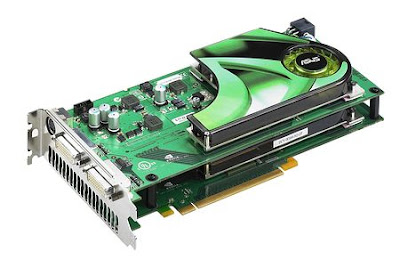

Let’s see which one gives the best bang for the buck under different price tags.

1. If you have a budget of approx. $55, then you can opt for ATI Radeon HD4650. Why? It’s the best solution for budget constraint gamers. With this card, you can play games at 1280x1024performances in most games, 1680x1050 with lowered detail.

2. If you have a slightly bigger budget of approx. $75, you can check out NVIDIA GeForce Gt240. With this card, you can play at 1680x1050 performances in most games, 1920x1200 in most games with lowered detail.

3. With a budget of approx. $105, you can opt for either ATI Radeon HD4850 or NVIDIA GeForce GT250. With any of these two cards, you can play at Exceptional 1680x1050 performance in most games, 1920x1200 in most games with lowered detail.

4. With an extended budget, you can look for ATI Radeon HD5770. This card will play at Great 1920x1200 performances in most games.

5. If you happen to have a bigger budget, you can opt for NVIDIA GeForce GTX470, with which you can play at Exceptional 1920x1200 performance, Good 2560x1600 performance in most games.

6. For those with a grand budget, you can choose between ATI Radeon HD5870 or NVIDIA GeForce GTX480 which plays at a Good 2560x1600 performance in most games, or ATI Radeon HD5970 for a Great 2560x1600 performance.

Which is the best graphics card – is certainly a very tricky question. One thing is for sure; whichever card you choose, it’s going to be worthy upgrades form the existing graphics card you have. But the more you spend, the more you will thrust. Happy gaming!

Tuesday, August 17, 2010

What is Motherboard?

You have heard the word motherboard, but don’t know exactly what it is? Motherboard is one of the most significant parts of a Central Processing Unit (CPU). Motherboard is the place where all the key components of a computer system are set up. You can also consider the motherboard as the central base as all the other PC components are connected to it.

Motherboard is basically a printed circuit board. You will find thousands of printed circuits in it which convey information or data from one part of the computer to another. A motherboard also features numerous slots and attachments so that other pc components can be attached.

Typically, in the motherboard of a desktop computer you will find microprocessor, main memory, and other essential components. In addition, other important components such as external storage, controllers for video display are also attached via cables. However, in most of the latest motherboards now integrate some of these peripherals into it. On board graphics card is a good example in this context.

The most vital part of the motherboard is the CPU slot. There are a number of motherboard brands available in the market and you can select any of them. ECS Elitegroup and Redfox are some of the most trusted brands. You can consult a remote PC repair company to get assistance in this regard.